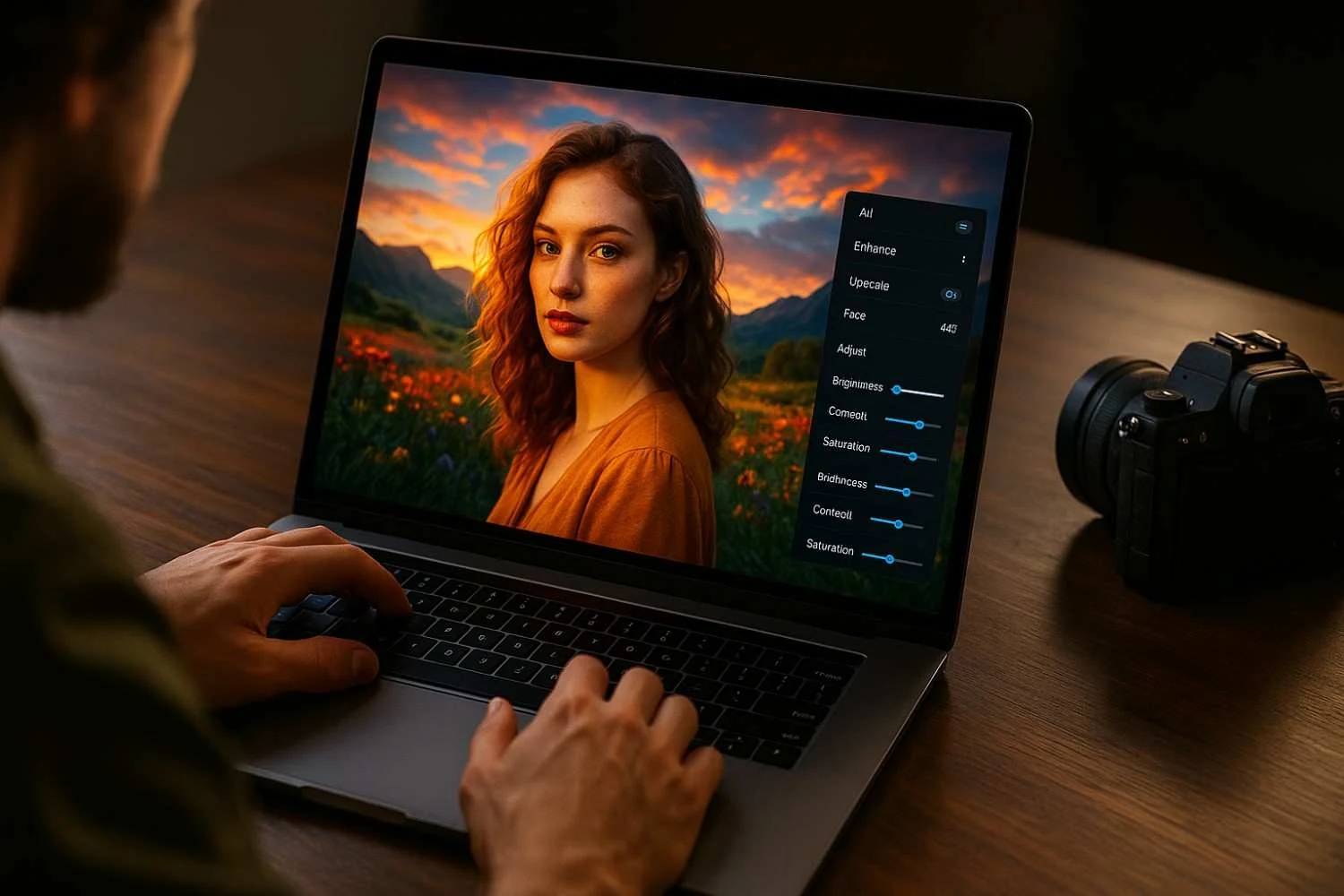
 If you shoot regularly—whether it’s weddings, fashion, events, or products—you’ve probably had this moment: a great shot ruined by noise, soft focus, or a flat-looking sky. In the past, fixing that meant spending ages in Lightroom or Photoshop, micro-adjusting sliders and masks.
Now, AI photo enhancement tools have changed that workflow completely.
Modern AI photo editing for photographers can denoise high-ISO images, sharpen soft details, clean up skin, fix colors, and even upscale small files to print-ready resolution—often in a single click. Tools from Adobe, Topaz, Luminar, Remini, Pixelcut, Canva, Fotor, and others use machine learning models trained on millions of images to “understand” what a good photo should look like and push your files in that direction.
For working photographers, that means:
If you shoot regularly—whether it’s weddings, fashion, events, or products—you’ve probably had this moment: a great shot ruined by noise, soft focus, or a flat-looking sky. In the past, fixing that meant spending ages in Lightroom or Photoshop, micro-adjusting sliders and masks.
Now, AI photo enhancement tools have changed that workflow completely.
Modern AI photo editing for photographers can denoise high-ISO images, sharpen soft details, clean up skin, fix colors, and even upscale small files to print-ready resolution—often in a single click. Tools from Adobe, Topaz, Luminar, Remini, Pixelcut, Canva, Fotor, and others use machine learning models trained on millions of images to “understand” what a good photo should look like and push your files in that direction.
For working photographers, that means:
- Faster delivery times
- More consistent edits
- “Saved” shots that would’ve been unusable a few years ago
Why AI Photo Enhancement Matters
1. How AI is transforming photography
AI is no longer just a buzzword in your camera marketing brochure. It’s built into editing apps, smartphones, and even some camera features. Today’s AI photo enhancement tools can:- Clean up noisy ISO 6400+ images while preserving fine detail
- Safely sharpen slightly out-of-focus shots
- Automatically detect faces and apply flattering retouching
- Swap dull skies, balance tones, and apply cinematic color grades
2. Why photographers prefer AI tools
Photographers are leaning into AI not because they’re lazy, but because:- Time is money. AI handles the heavy lifting on repetitive edits so you can focus on creative decisions and client work.
- Consistency matters. AI-powered presets and batch edits keep your look consistent across hundreds or thousands of images.
- They save borderline shots. Motion blur correction, advanced sharpening, and upscaling can turn “almost there” images into usable content.
3. Quick overview of key benefits
The best AI photo enhancement tools tend to excel in a few areas:- Clarity & sharpness: Bringing out details without halos or crunchy textures
- Noise reduction: Cleaning up grain in low-light scenes without killing texture
- Color correction & grading: Smarter auto-tone, white balance, and cinematic looks
- AI image upscaling: Boosting resolution 2x–8x (or more) while reconstructing detail
What Are AI Photo Enhancement Tools?
At a simple level, AI photo enhancement tools are apps or features that use artificial intelligence to automatically improve your images—often with one click or minimal manual adjustment. Instead of basic algorithms applying the same formula to every pixel, AI-based tools analyze the content of the image: faces, sky, background, textures, and edges. That means they can make more context-aware decisions.1. What can AI actually enhance?
Most of the best AI photo enhancer apps focus on:- Sharpening & detail enhancement – Fixing slight focus or motion issues, and enhancing micro-contrast in important areas like eyes, hair, and textures.
- Denoising – Reducing high ISO noise while preserving real detail (pore texture, fabric grain, etc.).
- Face improvement – Smoothing skin, brightening eyes, improving facial structure without (ideally) making people look like plastic dolls.
- HDR and tonal balance – Recovering highlights and shadows, making dynamic range look more natural and less “flat.
- Color grading – Applying filmic, cinematic, or stylized looks with AI-aware presets.
2. Use cases for photographers
AI photo editing for photographers can be valuable in:- Portraits: Skin retouching, eye enhancement, subtle reshaping, and background blur
- Landscapes: Sky replacement, haze removal, contrast, and color grading
- Product photos: Background cleanup, reflections removal, and upscaling for ecommerce listings
- Low-light & events: Noise reduction, sharpening, and tone correction
- Old photo restoration: Fixing faded, damaged, or blurred archive images
How AI Photo Enhancement Works
You don’t need a computer science degree to use these tools, but it helps to understand the basics.1. Machine learning models
Most AI enhancers are powered by machine learning or deep learning models trained on massive datasets of photos. The model learns patterns like:- What a sharp eye looks like
- How skin texture behaves
- How noise vs. real detail differs
2. Upscaling algorithms
AI image upscaling tools go beyond simple resizing. When you upscale 2x, 4x, or 8x, the model doesn’t just stretch pixels; it hallucinates (reconstructs) new detail that matches the scene: eyelashes, fabric texture, foliage detail, etc. Many online upscalers now offer 2x, 4x, or even 8x modes specifically for this.3. AI-based noise removal
Traditional noise reduction often smears fine detail. AI denoise models are trained to distinguish:- Random noise (sensor grain, color speckles)
- Real detail (hair, pores, texture)
4. Skin retouching + detail preservation
AI skin tools detect faces and differentiate:- Skin vs. hair vs. eyes vs. lips
- Foreground vs. background
5. Auto-color & tone correction
AI-powered auto-tone features look at exposure, contrast, white balance, and color cast, then adjust based on learned patterns from professionally graded images. Canva’s Auto-adjust and Fotor’s AI enhancer work this way—fine-tuning brightness, contrast, and saturation in a single click. Best AI Photo Enhancement Apps for Photographers Here’s a breakdown of some of the best AI photo enhancement tools worth considering for your workflow.1. Adobe Lightroom (AI Features)
Lightroom is still the backbone for many professional photographers, and Adobe has slowly woven AI into its toolkit. Key AI features:- Smart adjustments & masking Lightroom can identify subjects, skies, backgrounds, and specific regions automatically, letting you apply targeted edits with AI-driven masks instead of painting everything by hand.
- AI Denoise & Enhance
2. Topaz Photo AI
Topaz has built its reputation around dedicated AI tools for sharpening, denoising, and upscaling. Why photographers love it:- Super-resolution & upscaling Topaz Photo AI can enlarge images while reconstructing details, making it a favorite for wildlife, sports, and cropping-heavy photographers.
- Motion blur & focus issues Their AI can distinguish shake blur, motion blur, and focus problems, then correct them to produce crisp results that regular sharpening tools can’t manage.
3. Luminar Neo
Luminar Neo leans heavily into AI-driven creativity, making it ideal for stylized and dramatic edits. Standout features:- AI Sky Replacement Luminar’s Sky AI can detect your horizon, foreground objects, and reflections, then replace the sky while keeping lighting consistent and reflections believable.
- Portrait enhancement tools Luminar offers AI-powered face, skin, and body tools that smooth skin, relight faces, enhance eyes, and more. Combined with its RAW support for many camera models, it’s a strong option for portrait and wedding photographers.
4. Remini
Remini is a mobile-first AI enhancer known for dramatic transformations. Ideal for:- Photo restoration Remini’s AI can revive faded, blurry, or damaged old photographs, restoring detail and color in a single tap. It’s widely used for revitalizing family archives.
- Portrait clarity It specializes in adding definition and clarity to blurry or low-resolution portraits, sharpening facial features and textures while cleaning noise.
5. Pixelcut AI
Pixelcut is targeted heavily at e-commerce sellers and social media creators. Best for product & content creators:- Background removal Pixelcut’s AI background remover isolates products with impressive precision—handling hair, jewelry details, and complex edges—making it ideal for store listings and catalogs.
- Smart enhancement & upscaling for product photos It also offers AI upscaling to 4K–16K, plus simple lighting and shadow tools to make your product images look more polished with minimal setup.
6. Canva AI Photo Enhancer
Canva isn’t just a design tool anymore—it’s quietly become a very capable AI photo editor. Why it’s popular:- One-click edits (Auto-adjust) Canva’s Auto-adjust can instantly optimize brightness, contrast, and saturation in a single click for quick, decent-looking results.
- Web-based upscaling With Canva’s image enhancer and AI upscaler, you can increase image resolution up to 2x, 4x, 8x, or even 16x, making it useful for social graphics and web content that needs a resolution boost.
7. Fotor AI
Fotor offers a suite of browser-based and app-based AI enhancement tools. Key features:- AI photo enhancer Fotor’s AI can sharpen, deblur, denoise, and upscale images to HD or 4K in one click, making it attractive for quick fixes.
- HDR effects & color correction It also has an HDR photo editor that merges exposures and corrects alignment, plus a variety of filters and color effects to refine your look.
Features to Look for in the Best AI Enhancer
When you’re comparing AI photo enhancement tools, pay attention to:- AI sharpening – Should restore detail naturally, not just add crunchy edges.
- Face retouching – Look for adjustable strength and the ability to preserve real skin texture.
- Noise reduction – Good tools clean noise while keeping fine detail and avoiding waxy faces.
- Color grading presets – Film-style looks, cinematic tones, and LUTs that you can fine-tune.
- Background removal – Especially useful if you shoot products or portraits on inconsistent backdrops.
- Upscaling (2x–8x or more) – Essential if you crop heavily or need big prints from smaller files.
- RAW photo support – Vital for professional workflows (Lightroom, Luminar, Topaz, etc., all support various RAW formats).
Benefits of Using AI Photo Enhancement Tools
1. Saves time
Batch processing with AI (for noise, sharpening, or basic tone) can shave hours off big jobs like weddings or events. Instead of editing 800 images from scratch, you can let AI handle the first pass and then fine-tune your selects.2. Consistent editing style
AI-powered presets help maintain a consistent visual style across entire galleries. This is especially important for brand work, ecommerce catalogs, or social feeds.3. Better baseline than manual editing
AI doesn’t replace your eye—but it often gives you a better starting point than a totally flat RAW file. You can then refine contrast, saturation, and local adjustments to match your style.4. Great for beginners & pros
- Beginners: Get professional-looking results without deep technical knowledge
- Pros: Use AI as an assistant to speed up tedious tasks, not as a creative crutch.
Perfect for social media creators
If you create Reels, shorts, carousels, and thumbnails, AI tools—especially mobile apps like Remini, Canva, and Pixelcut—make it easy to quickly polish images before posting.Best Use Cases for Photographers
AI photo editing for photographers shines in several real-world scenarios:- Wedding photography
- Portraits & headshots
- E-commerce & product photos
- Travel photography
- Real estate images
- Low-light shooting
Tips for Maximizing AI Photo Enhancer Results
A few simple habits can help you get the most out of AI photo enhancement tools. 1. Start with the best possible source image AI works miracles, but it’s not all-powerful. Correct exposure, focus, and composition in-camera still matter. 2. Use AI first, then fine-tune manually Run AI denoise, sharpening, or auto-tone early in your workflow. Then adjust contrast, color, and local edits to your taste. This is how Adobe recommends using Denoise as well. 3. Avoid over-processing Watch out for: ○ Over-sharpened halos around edges ○ Wax-like skin ○ Excessive clarity or contrast If it looks “too perfect,” dial it back. 1. Compare “before vs after” frequently Many apps let you drag a divider to see the original vs the enhanced version. Use this to keep your edits natural. 2. Use AI presets wisely Start with AI-powered presets or templates, but don’t stop there. Tweak each image or batch slightly to avoid the “same filter on everything” look.Limitations & Common Mistakes
AI is powerful, but it’s not magic. Misuse can lead to unnatural images.- Over-sharpening Pushing sharpening or deblurring too far can create halos, ringing, or strange artifacts around edges.
- Artificial skin texture Some face enhancers can make skin look airbrushed or plastic if set too high. Always preserve a bit of natural texture.
- Unnatural colors Aggressive HDR or auto-color can push saturation and contrast past realistic levels, especially in skies and foliage.
- Loss of detail in very low-resolution images AI upscaling can only work with the information it has. If your starting file is tiny or heavily compressed, the reconstructed detail can sometimes look fake or painterly rather than truly sharp.
Future of AI in Photography
AI is moving quickly, and we’re already seeing hints of what’s coming next.- Real-time AI editing Smartphones already apply AI sharpening, HDR, and noise reduction as you shoot. Expect more of this in dedicated cameras and live tethered workflows.
- AI-powered cameras Future camera bodies may integrate subject-based processing, smart exposure decisions, and instant background separation directly into RAW processing pipelines.
- Fully automated retouching workflows End-to-end systems that:
- Some studios are already building this with a mix of Lightroom, Topaz, and cloud-based AI services.
Conclusion
AI photo enhancement tools have quietly become essential in modern photography workflows. From Lightroom’s AI Denoise to Topaz’s super-resolution, from Luminar’s sky replacement to Pixelcut’s ecommerce background removal, these tools:- Make professional editing faster
- Help you achieve a consistent style
- Rescue borderline images that used to be throwaways
- Open the door for beginners to get impressive results quickly
FAQs About AI Photo Enhancement Tools
1. What is the best AI photo enhancement tool?
There’s no single “best” option for everyone. In general:- Lightroom + Topaz Photo AI – Great combo for professional photographers handling RAW files, noise, and sharpening.
- Luminar Neo – Excellent for creative edits and sky replacement.
- Canva / Pixelcut / Fotor / Remini – Ideal for quick web, social, and mobile workflows.
- Are AI photo enhancers good for professional photographers?
- AI Denoise and masks in Lightroom
- Topaz for sharpening and upscaling
- Luminar for sky replacement or specific portrait edits
3. Which AI app can fix blurry photos?
Several tools excel at fixing blur:- Topaz Photo AI / Sharpen AI – Specializes in motion blur, focus issues, and general softness.
- Remini – Very effective on low-res or blurry portraits and old photos.
- Fotor AI enhancer – Offers deblurring and sharpening in one click.
4. Does AI reduce noise without losing detail?
Good AI tools are designed to do exactly that. Lightroom’s AI Denoise and Topaz’s noise models are trained to distinguish noise from real detail so they can clean the file while preserving textures like hair, skin, and fabric. Results will still depend on how noisy the original image is, but AI is noticeably better than traditional noise reduction.5. Can AI edit RAW files?
Yes—many professional-grade AI tools support RAW editing:- Adobe Lightroom / Camera Raw – Built for RAW, with AI Denoise and Enhance.
- Luminar Neo – Supports RAW files from a wide range of cameras.
- Topaz Photo AI – Designed to work with RAW and high-quality inputs.
6. Are AI photo enhancers free?
Many offer:- Free versions or trials – Canva, Fotor, Pixelcut, and some online upscalers provide free tiers.
- Paid subscriptions or one-time licenses – Lightroom (via Adobe Creative Cloud), Luminar, and Topaz are typically paid products.
7. What is the best tool for portrait enhancement?
For portraits and headshots, popular choices include:- Lightroom – For global adjustments, subtle skin retouching, and color.
- Luminar Neo – For AI face, skin, and background tools with more creative control.
- Remini – For quickly improving low-res or old portraits on mobile.